Adding Noticestry as an admin to Stripe
You can add Noticestry as a user by going to dashboard.stripe.com/test/settings/team when logged in.
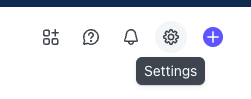
If you prefer you can also click on the gear icon (settings in the upper right)
and then click Team and security
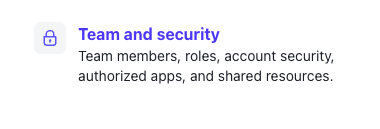
From there click + Add Member
If you prefer you can also click on the gear icon (settings in the upper right)
and then click Team and security
From there click + Add Member
Enter ryan@noticestry.com as the team member email address
Choose Super Administrator
Click Send Invites at the bottom and Noticestry will be able to access the account.
Related Articles
Adding Noticestry to Facebook Ads Account - Without a Business Manager
Adding Noticestry to Facebook Ad Account Without A Business Manager Login to Facebook Navigate to adsmanager.facebook.com Make sure you select the correct ads account: On the left hand side choose "Ad Account Settings" On the right hand side, under ...Adding Noticestry to Google Analytics
To add Noticestry to your Google Analytics Account, Follow the steps outlined Below. Step 1. Navigate to: https://analytics.google.com Step 2. Choose "Admin" (the gear icon located in the lower left of the screen) Step 3. Choose "Account access ...Adding Noticestry to a LinkedIn Business Page
Step 1. Navigate to linkedin.com and sign in. Step 2. Once signed in navigate to your profile picture in the upper right. Step 3. Choose the page that you want you want to go to. Step 4. Choose Manage Admins & + Add admin Step 5. Add "Ryan Wilsey" & ...Adding Noticestry to Facebook Business Manager
1. Navigate to https://business.facebook.com You should see a screen similar to this: 2. Choose "Settings" on the bottom left of the black bar. Under Settings, you may be able to choose "Add People", if this doesn't work click "More Business ...Adding Noticestry to Google Business Profile
Sign into the Google account that manages your Google Business Profile. Search Google for your business name, or go to business.google.com. If you do not see the location that you are trying to give Noticestry Access to make sure that you are logged ...